
You can automate Google reviews by getting your Google review link, picking one event that means a job is done, and letting software text every customer that link after that event, with a reminder or two if they don't answer. You can't make Google post reviews for you, and you shouldn't want to. What you automate is the asking, because that is the part that gets forgotten when you are under a sink at 6 p.m. Quotewren does this for solo trades: when a job is finished, it sends a three-touch review request by SMS.
TL;DR
- Google gives you a review link, and businesses may remind customers to leave a review with that link or a QR code. Automation just sends the link for you.
- Pick one trigger, like a job marked complete or an invoice paid, and send the same neutral request to every customer.
- Plan on one first text and at least one reminder a few days later. Most people don't answer the first time.
- Never pay, discount, or trade favors for reviews, and never ask only your happy customers. Google and the FTC both have rules on this.
- Start with your next five jobs. You don't need a big system to begin.
Table of Contents
- What "automating Google reviews" really means
- Why the ask is the part to automate
- How to set up automated Google review requests, step by step
- The rules you need to follow
- Timing and numbers: how many requests, and when
- What if customers ignore your review requests?
- Starting from zero reviews
- Doing it by hand versus doing it automatically
- Automate the whole job, not just the review
- Try it on your next job
- Our view: ask every customer, the same way
- FAQ
- Sources
What "automating Google reviews" really means
People use the phrase for three different things. Only one of them matters when you are a one-person shop.
1. Automating the request. A text or email goes out after a job without you remembering to send it. This is the one that builds your review count.
2. Automating replies. Software writes answers to reviews that come in. Google's own guidance recommends replying to reviews and valuing all of them, and a real reply from you takes about a minute. For a solo operator with a handful of new reviews a month, there is little to save here.
3. Automating the reviews themselves. This is fake reviews, and it is illegal. More on that below.
So when we say automate Google reviews, we mean the first one: a reliable way to ask every customer, at the right time, with the right link, without you doing it by hand.

Why the ask is the part to automate
Most happy customers never leave a review. Not because they're unhappy, but because nobody asked, or the ask came a week late when they'd moved on. A plumber who fixes a leaking water heater on Tuesday is a hero on Tuesday. By the next Tuesday, the customer is busy with their own life.
The other problem is you. You finish a job, load the truck, and drive to the next one. Asking for a review lands at the bottom of a list that also includes quotes, invoices, and calling people back. Automation fixes the part you are worst at: doing the same small thing every time.
Better timing helps with local search too. We cover that in why asking within hours matters for local SEO.
How to set up automated Google review requests, step by step
The steps are the same whether you are a plumber, an electrician, a landscaper, or a house cleaner.
Step 1: Get your Google review link
Your review link opens a review box for your business on Google. Google says businesses can remind customers to leave a review by sharing a review link or QR code. You need a verified Google Business Profile first. If you don't have your link yet, here is how to find and test your Google review link.
Open the link on your own phone before you use it anywhere. Make sure it lands on your business and not someone else's.
One thing to know: Google says a reviewer must be signed in to a Google Account, and that account can use an email address that is not Gmail. Most customers with an Android phone or a Gmail inbox are already signed in. Some customers aren't, which is one reason a reminder helps.
Step 2: Choose the moment that means "done"
Automation needs a trigger. The best trigger is the event that tells you the work is truly finished. Contractor Magazine's 2026 guide suggests using an event such as a job marked complete or a settled invoice as the start of the workflow, then adding a delay, sending the request through a channel you already use with the customer, and keeping a record of what was sent.
Here is how that looks in real trades:
- Plumber: the water heater is installed and the customer has signed off. Job marked complete.
- HVAC tech: the spring tune-up is done and the invoice is paid.
- Landscaper: the crew finishes a mulch and edging job, and you mark it done from the truck.
- House cleaner: the cleaning is finished and the customer has paid by link.
- Handyman: the last item on the punch list is checked off.
Pick one trigger and stick to it. If you switch between "complete" and "paid" job by job, some customers will get asked twice and some never.
Watch out for big jobs split into several visits, like a remodel with an electrician back three times. The same guide recommends preventing duplicate requests for related work orders. One review request per customer per project is plenty.
Step 3: Pick the channel
Text messages are the natural fit for trades. Your customers already text you to say they'll be home at 9, and a text with a link takes about 15 seconds to act on from a phone. Email works too, but a text is more likely to be seen while the job is still fresh. Our review engine uses SMS.
Step 4: Write a short, neutral message
Keep it plain, personal, and honest. The same guide's sample thanks the customer and asks them to share their experience through the review link. Something like this works:
Hi Maria, this is Dan from Dan's Plumbing. Thanks for having us out today to replace your water heater. If you have a minute, would you share how it went? [review link]
That message does four things right:
- It uses the customer's first name and yours.
- It names the job, so the customer remembers who you are.
- It asks how it went, not for five stars.
- It has one link, so there is only one thing to tap.
A review reminder message can be even shorter: "Hi Maria, just a quick follow-up in case you missed my note. Here's the link if you have a minute. Thanks again!"
Step 5: Add a delay and a reminder
Send the first request soon after the job, while the work is fresh. The guide recommends an initial request and, as a common starting point, one reminder several days later. Our setup sends three touches by SMS after job completion, and we walk through the idea in our three-touch review flow for solo service businesses.

Three is a good fit for a busy customer: the first catches the quick responders, the later ones catch people who meant to and forgot. It is not a nagging barrage, and every message stays short and polite.
Step 6: Send the same request to every customer
This is the most important rule and the easiest to break. Do not filter. The guide recommends sending the same neutral request to everyone instead of only to people you think will be positive. Automation helps here, because it doesn't have a mood. It asks the customer who was easy and the customer who was picky in exactly the same way.
Step 7: Check what happened
Once a week, look at three things: how many requests went out, how many new reviews came in, and whether anything needs a reply. Reply to every review, short and human. Google recommends replying and valuing all reviews, and a calm reply to a critical one shows future customers how you handle problems. Our guide to setting up your Google Business Profile reviews and replies covers the basics.
The rules you need to follow
Automation makes it easy to ask. It also makes it easy to ask the wrong way. Keep these rules in mind.
Google's rules
Google says reviews must reflect a genuine experience, and it prohibits offering free or discounted goods or services in exchange for posting, changing, or removing reviews. That means no "$25 off your next service for a 5-star review," no free gutter cleaning for a good review, and no deal where a bad review gets removed in return for a refund.
Asking is fine. Paying for the outcome is not. For a deeper look at how this plays out in trades, see our Google review policy guide for solo trades.
The FTC's rule
The FTC's Consumer Reviews and Testimonials Rule became fully effective on October 21, 2024 and sits in 16 CFR Part 465. The FTC says that offering an incentive tied, openly or quietly, to a review expressing a particular positive or negative opinion violates 16 CFR §465.4. In plain words: you can't reward someone for saying something nice, and you can't punish them for saying something bad.
The safe habit is simple. Ask everyone. Offer nothing in return. Take what comes. If a question about a specific situation worries you, such as a customer offering to change a review for a refund, talk to a lawyer rather than guessing.
Why "gating" is out
Review gating means asking customers how happy they are first, then sending only the happy ones to Google. It is the main thing people ask about with review automation, and it is the trap to avoid. A system that sends the Google link to everyone, as step 6 describes, keeps you clear of it.
Timing and numbers: how many requests, and when
When: soon after the job is done, not weeks later. If you are curious about the best window, our post on asking within hours of the job goes into it.
How many messages per customer: one first request plus reminders. A first text and a reminder several days later is a common starting point, according to the Contractor Magazine guide. Our three-touch flow is built on the same idea. Past that, you risk annoying people who have already decided not to.
How many customers: all of them. If you did the work and sent an invoice, the customer gets the request. That's the whole policy, and it's what makes the automation work.
Here is a quick example. Say you're an electrician who finishes 12 jobs a month. If you text all 12 customers, and a few answer, you may get a handful of new reviews a month without lifting a finger. Over a year, that adds up to a real wall of reviews. We aren't promising a number, because it depends on your customers, but the math favors the person who asks every time.
What if customers ignore your review requests?
Some will. That's normal. Here is what to check before you decide it isn't working.
- Is the link right? Tap it yourself. A broken link kills the whole thing.
- Is the text too long? If it needs scrolling, shorten it.
- Does it say who you are? People ignore texts from numbers they don't recognize. Put your business name in the first line.
- Was it too late? A text two weeks after the job is easy to skip.
- Did you send a reminder? Many people read the first message, mean to answer, and forget.
- Is the experience easy? Some customers hit the sign-in wall. A QR code on your invoice or truck can give them a second route. Our guide to review link QR codes for tradespeople shows how.
Trying to speed things up with a discount is the wrong fix. Remove friction instead. A quick read on this is turning 15 seconds of friction into more Google reviews.
Starting from zero reviews
If your Google profile has no reviews, or just one from your cousin, the first five are the hardest. People look at a business with no reviews and wonder. Don't wait for a perfect system. Take your last 10 to 20 happy customers and send them a short, honest personal text with your link. Then turn on the automation for every new job from here on.
We lay out the order of attack in our 3-step plan for your first five Google reviews. If you want a broader view of the same ground, there's also how to get more Google reviews without chasing customers.
A note on where to focus: if you have to choose one review site, most local trades are better served putting effort into Google first. Our comparison of Google reviews and Yelp for tradespeople explains why.
Doing it by hand versus doing it automatically
| By hand | Automated | |
|---|---|---|
| Who remembers | You | The system |
| When it goes out | When you have time | Right after the job |
| Reminders | Often skipped | Built in |
| Same message every time | Rarely | Yes |
| Cost to you | Time you don't have | A small monthly fee |
If you do three jobs a week, you might manage by hand for a while. The trouble is that busy weeks are exactly when you forget, and busy weeks are also when you have the most customers to ask.
Automate the whole job, not just the review
A review request works best as the last step in a flow you already follow: quote, approval, work, invoice, payment, thank-you. If those steps live in different places, like a notes app, a spreadsheet, and a text thread, a review request has nothing to attach to.
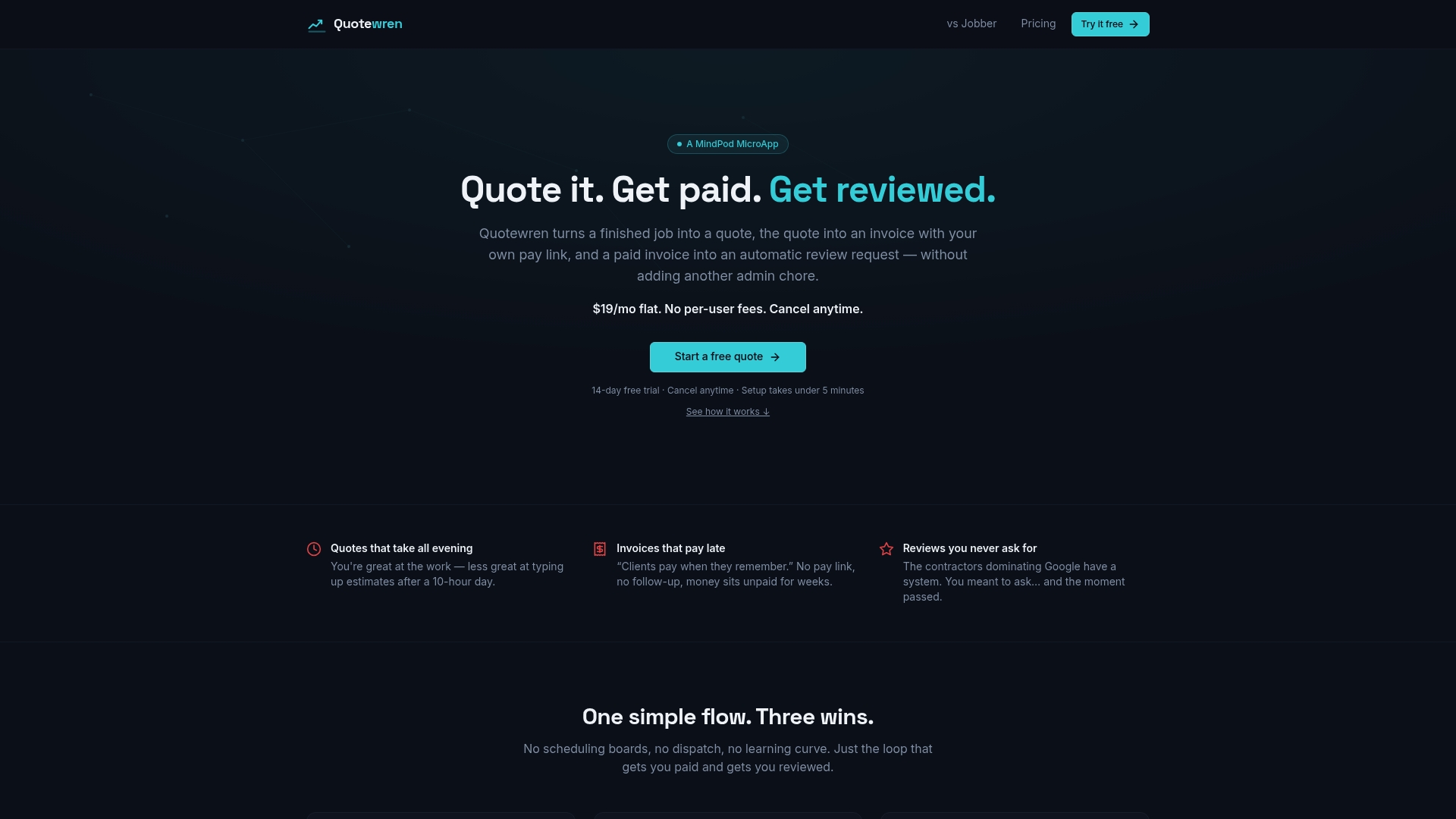
Quotewren keeps them together. You build a branded quote, turn the approved work into an invoice, send a pay link, and the review request goes out by SMS after the job is complete. One tool, one flow, and nothing to remember at the end of a long day. If you want to see what a clean quote looks like, our free quote templates for trades are a good place to start.
Try it on your next job
Quotewren is built for solo tradespeople and small independent crews. It handles quoting, invoicing with pay links, and automated Google review requests, with the three-touch SMS review engine included in every paid plan. There is a Free plan to start, the Quotewren plan is $19 per month, and Quotewren Crew is $39 per month. You can see the details on the Quotewren pricing page, or start with the Free plan.
Before your next job, paste your Google review link into the tool, mark the job complete when you finish, and let the first request go out. That's the whole setup.
Our view: ask every customer, the same way
We built Quotewren for people who run the whole business from a truck. You don't have an office manager or a marketing person. You have a phone, a few minutes between jobs, and a lot of customers who liked your work and never said so online.
That's why we think review requests belong right next to quotes and invoices, not in a separate tool with its own login and its own learning curve. When a job is finished, the next step should already be lined up. Our review requests go out by SMS after the job is complete, in three touches, and they are included in every paid plan.
We also think the honest way is the simple way. Send the same polite ask to every customer. Skip the tricks and the discounts. A steady stream of real reviews from real customers is what helps a small trade business show up and get chosen, and a flat monthly price means you don't have to guess what the tool will cost.
jaras
FAQ
Is there a way to automate Google reviews?
Yes, for the requests. Google gives you a review link, and businesses may remind customers to leave a review by sharing that link or a QR code. Software can text that link to each customer after a job so you don't have to remember. The reviews themselves must always come from real customers.
How many review requests should I send each customer?
Start with one request right after the job and one reminder several days later, which is the starting point Contractor Magazine's 2026 guide suggests. Quotewren's flow sends three SMS touches after job completion. Keep each message short and friendly, and stop once the customer has left a review.
Can I give a discount for a review?
No. Google prohibits offering free or discounted goods or services in exchange for posting, changing, or removing reviews. The FTC's rule also bars incentives tied to a review's positive or negative opinion. Thank customers who leave reviews with a reply, not a reward.
Should I only ask my happy customers?
No. Send the same neutral request to everyone. Picking only the customers you expect to be positive is review gating, and it is the thing to avoid. Asking everyone also gives you a more honest picture of your work.
What if I have zero reviews right now?
Start small. Text your recent satisfied customers your review link, then turn on automatic requests for every new job. Getting your first five is the hardest part, and after that each finished job adds to the count.
Sources
- Tips to get more reviews - Google Business Profile Help
- Stop Chasing Reviews: Automate Every Request and Follow-Up - Contractor Magazine
- FTC 2025 fake review warning template