

Right now, check your Google Business Profile reviews, reply to any that need it, and send a review request link to your last happy customer. That's the whole game, and it takes less than 10 minutes once you know where to click. Google averages every rating you get into one visible score, and a new review can take up to two weeks to show up in that average, so consistent habits beat frantic scrambling every time.
Here's your three-step loop, done daily or at least weekly:
- Check. Open your profile and scan for new reviews you haven't seen.
- Reply. Answer anything with an open complaint or question first.
- Ask. Send a review link to a customer you just finished a job for.
A quiet reputation is a dead reputation. If nobody's leaving reviews, nobody's finding you either.
Pro Tip: If a review looks fake or abusive (wrong customer name, no service history, threats), don't argue in the replies. Screenshot it, note the date, and flag it through Google's reporting tool before responding publicly.
Key Takeaways
Consistent replies, honest requests, and correct timing expectations do more for your Google rating than any single review ever could.
| Point | Details |
|---|---|
| Reply before you ask | Answer open complaints first, since new customers judge how you handle problems more than your star count. |
| Expect a rating delay | New reviews can take up to two weeks to change your visible average score. |
| Use your review link everywhere | Put it on invoices, texts, and QR codes on your van instead of relying on memory. |
| Report, don't argue | Flag fake or abusive reviews through Google's tool and keep evidence ready in case you need to appeal. |
| Automate the follow-up | Tools like Quotewren send review requests right after payment clears, keeping the ask timely without extra effort. |
Official Google Pages and Developer Docs for Follow-Up
For reporting a review, use the Report inappropriate reviews page. For API integration, check the review data developer docs.
Table of Contents
- Where Google Business Profile Reviews Actually Show Up
- How Your Rating Gets Calculated (and Why It's Slow to Update)
- How to Read, Reply to, and Manage Reviews Step by Step
- Ethical Ways to Get More Google Reviews Without Breaking Policy
- Handling Fake, Abusive, or Policy-Violating Reviews
- Dashboard vs. API: Managing Reviews Across Multiple Locations
- Fitting Automated Review Requests Into Your Job Workflow
- What Solo Operators Should Actually Prioritize
- Let Quotewren Handle the Follow-Up You Keep Forgetting
- Sources
- FAQ
Where Google Business Profile Reviews Actually Show Up
Your reviews don't live in one spot. They follow you around the internet, and that's exactly why they matter so much for local trades work.
- Search results — star ratings appear right under your business name when someone searches your company or your trade plus city.
- Google Maps — full review text and photos show when a customer taps your pin.
- Local Pack — the map plus three-business box that appears for searches like "emergency plumber near me." Your rating is often the deciding factor here.
- Knowledge Panel — the info box on the right side of desktop search results, pulling your rating, hours, and photos together.
- Business Profile in Maps — where customers browse full review history before calling.
A homeowner searching "emergency plumber near me" at 11 PM is comparing three or four names in the Local Pack. Star count and review volume decide who gets the call. Photos customers or you upload can also surface alongside your listing, adding another layer of trust before anyone dials your number.
How Your Rating Gets Calculated (and Why It's Slow to Update)
Google takes every rating you've ever received and averages them into the single score shown next to your name. It's not weighted toward recent reviews, and it's not a rolling window. Every star you've earned since day one counts.
That average can lag behind reality. New reviews can take up to two weeks to be reflected in your displayed review score, so don't panic if a fresh 5-star review from your electrical job yesterday hasn't moved your number yet.
A few timing facts worth knowing:
- Your public rating updates on a delay, not instantly.
- Google reviews replies for policy compliance, and this usually finishes in about 10 minutes, though it can occasionally take up to 30 days.
- One bad week of reviews won't tank a strong long-term average, but it also won't disappear overnight.
How to Read, Reply to, and Manage Reviews Step by Step
You need to be verified before you can reply to anything. If you haven't done that yet, it's step zero. Once verified, the Manage customer reviews page walks through reading, replying, flagging, and sharing your review link, and it works the same whether you're on a laptop between jobs or on your phone in the truck.
On desktop (Business Profile Manager):
- Sign in and click "Reviews" from the left menu.
- Scan the list. Unanswered reviews are usually flagged or sorted to the top.
- Click "Reply" under any review, type your response, and hit "Post reply."
- To edit or delete a reply later, click the three-dot menu next to it.
On mobile (Google Maps app or Business Profile app):
- Tap your business profile icon, then "Reviews."
- Tap the review you want to answer.
- Tap "Reply," type your message, and send.
Reply templates that actually sound like a person wrote them:
- Positive: "Thanks, Mike! Glad we got that water heater swapped before the weekend. Appreciate you taking the time to leave this."
- Neutral (mixed feedback): "Thanks for the honest feedback. We'd like to make this right. Can you give us a call at [number] so we can sort out the scheduling issue?"
- Negative: "Sorry to hear the job didn't meet expectations. We take this seriously and want to fix it. Please reach out directly so we can look into what happened."
Never post a customer's address, phone number, or job details in a public reply. Take the conversation to a call or text once you've acknowledged them publicly. As for moderation, expect most replies to go live within minutes, though the system occasionally holds one for review, so don't repost the same reply twice if it doesn't appear instantly.
Pro Tip: Reply to negative reviews first, then neutral, then positive. A prospective customer scrolling your reviews cares most about how you handle problems, not how you thank people for five stars.
Ethical Ways to Get More Google Reviews Without Breaking Policy
Google's own guidance is blunt about this: no incentives, no scripted wording, keep every request honest. That's good news for solo tradespeople, because the best request method is also the cheapest and fastest.
Start by grabbing your review link. In your Business Profile, go to "Get more reviews" and copy the short URL Google generates. Turn that same link into a QR code using any free QR generator, print it small, and stick it on invoices, yard signs, or your work van.
Three templates that work without sounding like a form letter:
- Text message (sent right after job completion): "Hey [name], it's [your name] from [business]. Thanks for having us out today. If you've got 30 seconds, we'd really appreciate a quick review: [link]"
- Invoice add-on line: "Enjoyed the service? Leave us a quick Google review here: [link]"
- In-person ask (right after the final walkthrough): "If you're happy with the work, a quick Google review helps us a ton. I can text you the link right now if that's easier."
Dos and don'ts worth memorizing:
- Do ask every satisfied customer, not just the ones you think will gush.
- Do make the link one tap away. Friction kills review requests.
- Don't offer a discount, gift card, or freebie in exchange for a review.
- Don't write the review for the customer or suggest specific wording.
A simple 3-message follow-up timeline keeps you consistent without becoming annoying:
- Immediately after job completion: thank-you text with the review link included.
- 48 hours later: a short reminder if no review has posted yet.
- 7 days later: one final, low-pressure nudge, then stop.
Pro Tip: Timing beats wording. Send the request while the customer's still glad the leak is fixed, not three weeks later when they've forgotten your name.
Handling Fake, Abusive, or Policy-Violating Reviews
A legitimate negative review complains about your work, price, or scheduling. A policy-violating review involves something else entirely: hate speech, a competitor posing as a customer, threats, or a rating left by someone who never hired you. Trades businesses get hit with fake reviews often, usually from a rival contractor or a dispute unrelated to actual work performed.
To report one:
- Find the review on your profile and click the three-dot menu.
- Select "Report review" and choose the policy violation category that fits.
- Track the status through the Reviews Management Tool, where you'll see updates like "Decision pending."
- If Google denies removal, you get one opportunity to submit an appeal, so use it only when you have solid evidence.
Before you appeal, gather your evidence checklist:
- Transaction or invoice records showing you never served this person.
- Dated photos or job site notes.
- Text or email threads with the actual customer if there's confusion.
- A witness statement from a coworker or subcontractor, if relevant.
One legal note: never post a public threat toward a reviewer, and never share a customer's private information to defend yourself. If a review crosses into extortion (someone threatening a bad review unless you pay them), that's a matter for legal counsel, not a public reply.
Dashboard vs. API: Managing Reviews Across Multiple Locations
A one-location plumber or landscaper almost never needs anything beyond the standard dashboard. Log in, check reviews, reply, done. It's built for exactly that kind of simple, manual workflow.
Once you're running multiple locations, a franchise, or managing reviews for several client businesses, the Google Business Profile API becomes worth a look. It lets a developer list, retrieve, reply to, and delete review replies programmatically instead of clicking through each profile by hand.
Fields your developer will work with include:
- reviewId — unique identifier for each review.
- starRating — the numeric score left by the customer.
- comment — the written review text.
- createTime — when the review was posted.
- reviewReply — your response and its moderation status (pending, approved, or rejected).
If you're a solo operator with one shop and one van, skip the API talk entirely. It's built for agencies and multi-location operators, not for the electrician running four jobs a week out of one truck.
Fitting Automated Review Requests Into Your Job Workflow
The best review request is the one that happens automatically the moment a job wraps and gets paid. Here's a sequence that works without feeling robotic:
- Job finishes, invoice goes out.
- Customer pays through a link.
- Payment confirmation triggers an SMS review request within minutes.
- If no review posts in 48 hours, a friendly reminder goes out automatically.
Keep every automated message specific. Mention the job type or street name ("Thanks for letting us handle that water heater on Maple Street") instead of a generic "thanks for your business" line. Specificity is what keeps automated texts from feeling like spam.
This is exactly the sequence Quotewren is built around. Once you mark a job paid, it fires off a three-touch SMS review request automatically, so you're not the one remembering to text every customer at 9 PM.

Pro Tip: Automate the timing, not the wording. Change up the message every so often so regular customers don't get the same canned text twice.
What Solo Operators Should Actually Prioritize
Reviews management doesn't need a strategy document. It needs a habit. Verify your profile first, since nothing else works until that's done. Then pick one day a week to check for new reviews and reply to anything sitting unanswered.
Priority order, in practice: reply before you ask, document before you argue, request before you forget, and automate only once the first three feel routine. A one-person shop doesn't need software to reply to reviews. It needs the discipline to do it consistently.
Delegate when the workload outgrows you. That means after-hours messages piling up, more than one location to watch, or a fake review situation that needs real reputation recovery work. Everything else, you can handle yourself in the time it takes to drink your morning coffee.
Let Quotewren Handle the Follow-Up You Keep Forgetting
Quotewren is built for exactly the gap most solo tradespeople fall into: the job gets done, the invoice gets paid, and the review request never happens because you're already on the next call. It connects your quote, your invoice, your pay link, and your review request into one chain, so the ask goes out the moment payment clears instead of whenever you remember.
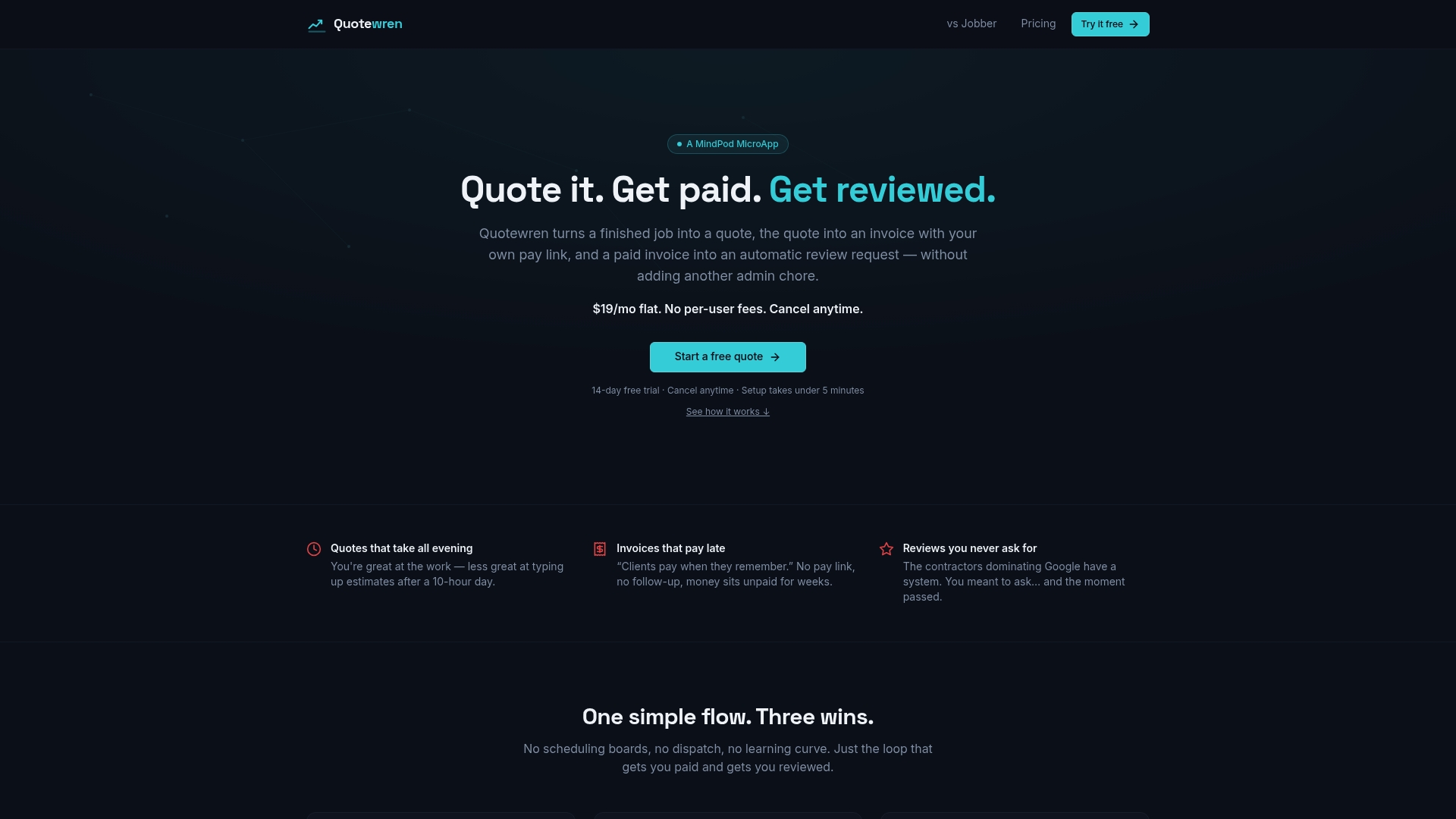
Three things it actually does for you:
- Saves time by sending the review request automatically instead of adding it to your evening to-do list.
- Gets timely reviews through a three-touch SMS sequence, so requests go out while the job is fresh in the customer's mind.
- Keeps invoices and pay links in one place, so you're not juggling three separate apps to get paid and get reviewed.
None of this replaces the habits covered above. Everything in this guide works without paying for anything. But if you'd rather not be the one texting every customer manually at the end of a long day, you can try Quotewren and see how the automated request fits into your existing invoice workflow.
Sources
- Understand review scores for local places & businesses - Google Business Profile Help
- Report inappropriate reviews on your Business Profile - Google Business Profile Help
- Work with review data | Google Business Profile APIs
FAQ
How do I find my Google Business Profile reviews?
Search your business name on Google or open Google Maps, then look for your listing's review section, or sign into your verified Business Profile dashboard to see them all in one place.
Is it worth having a Google Business Profile?
Yes. It's usually free to set up, and it's often the first thing a customer sees before calling a plumber, electrician, or landscaper, so an incomplete or unclaimed profile costs you jobs you never even hear about.
How do I leave a review of a business on Google?
Search the business on Google or Maps, scroll to the reviews section, tap the star rating you want to give, and add optional text before submitting.
Can I turn off reviews on my Google Business Profile?
No. Google doesn't let businesses disable reviews entirely, but you can reply to every review and report ones that violate policy through the reporting tool.