
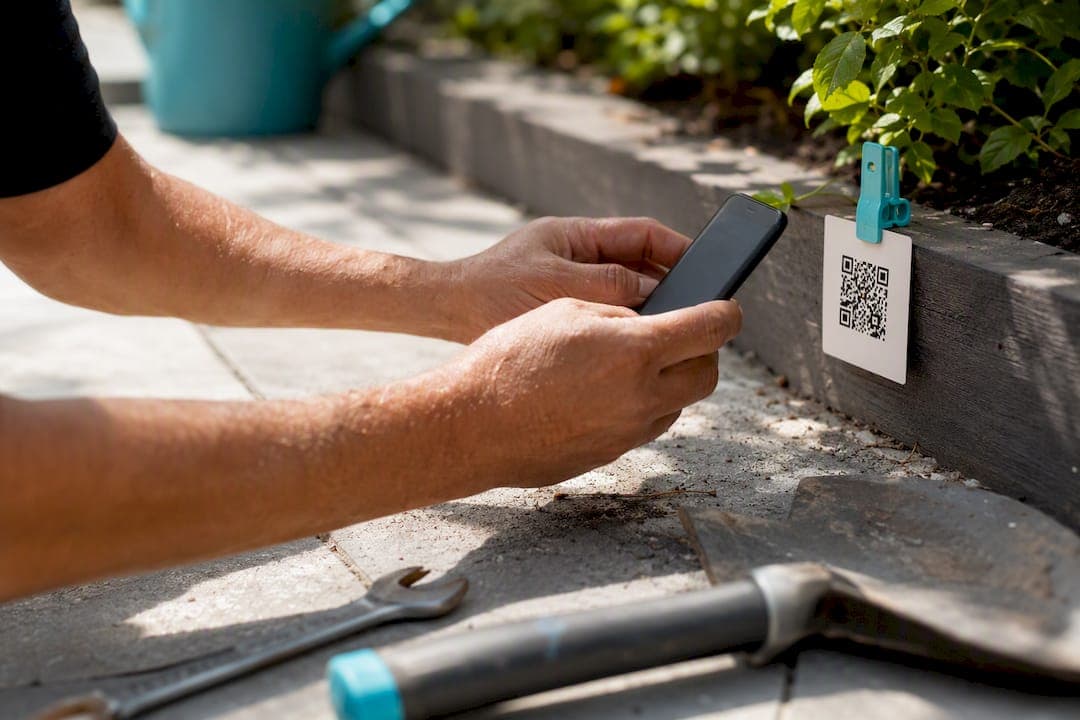
Get your Google review link from your Business Profile and turn it into a static QR code, or just download the QR code Google already made for you. If you plan to print it anywhere long-term, like a yard sign or vehicle magnet, use the Place ID URL instead of the short link. Quotewren can send that same link by text right after a job, which is when customers are most likely to actually leave you a review.
TL;DR:
- Using the Place ID URL is essential for printed materials like vehicle decals or yard signs, as it remains stable even after profile updates.
- The best file format for print QR codes is SVG, with a minimum size of 1.5 inches and high error correction (level H) to ensure reliable scanning outdoors.
- Sending review links via automated texts immediately after job completion significantly increases the likelihood of receiving reviews while customer satisfaction is high.
- Avoid third-party tracked redirect links for permanently printed QR codes, as they risk expiring or being shut down if the service ends or payments stop.
- Test your QR codes thoroughly by scanning with multiple devices before printing or distributing to ensure they land directly on the review form.
Table of Contents
- How Do I Create a Review Link QR Code?
- Which Link Should You Actually Use: Short Link, Place ID, or Tracked Redirect?
- What File Size and Format Actually Scan Reliably?
- Where Should You Put Your QR Code to Actually Get Reviews?
- How Do You Test and Stay Compliant With Google's Review Rules?
- How One Solo Tradesperson Turns Finished Jobs Into Reviews
- Try Quotewren for Automated Review Requests
- Sources
- FAQ
How Do I Create a Review Link QR Code?
You don't need any design skills for this. Here's the whole thing, start to finish.
- Log into your Google Business Profile. Find the "Get more reviews" card on your dashboard and click it. Google hands you a short review link right there, ready to copy. You can also grab a link straight from Google Maps by searching your business and tapping "Share."
- Get your Place ID (optional, but worth it for print). If you're putting this QR code on anything permanent, like a truck decal or a printed sign, use Google's Place ID Finder tool to pull your unique Place ID. Then build a URL like this:
search.google.com/local/writereview?placeid=YOUR_PLACE_ID. - Paste that link into a QR code generator. Look for one that gives you a static image, not a "dynamic" or tracked link. Export it as an SVG if you can, or a PNG.
- Test it before you trust it. Scan the code with your own phone, then hand it to someone else and have them scan it too. Confirm it lands directly on your business's review form. Save a high-resolution copy for print and a smaller one for texts and email.
Pro Tip: Write down your canonical review link somewhere every employee can find it, like a sticky note in your work van or a pinned note in your team group chat. If two guys on your crew are handing out two different QR codes, you're splitting your reviews across two links and making it harder to build up one solid, trustworthy review count.
Which Link Should You Actually Use: Short Link, Place ID, or Tracked Redirect?
Not every review link is built the same, and picking the wrong one can cost you months down the road.
- Google's short link: Fastest thing to get. Copy it in ten seconds from your Business Profile. Good for texting a customer today or sharing on social media, but treat it as a short-term tool.
- Place ID permanent URL: Tied directly to your business location and doesn't change when you edit your profile info, according to Mailchimp's review link guidance. This is the one you want on anything you're printing in bulk, like 500 business cards or a vehicle wrap that lasts three years.
- Third-party dynamic shorteners: Some review or QR services offer link tracking and pretty branding, but most run on redirect services that can expire or get shut off if you stop paying for that provider, per developer guidance on building static review QR codes. That's a real risk for a code stuck on a sign in your yard for the next two years.
The rule of thumb: use the Place ID for anything printed, the short link for a quick digital share, and only use a tracked redirect if you personally control that redirect service.
What File Size and Format Actually Scan Reliably?
A QR code that looks fine on your laptop screen can fail completely once it's shrunk down and printed on a receipt. Get the specs right the first time.
- File format: SVG is the best choice for anything going to print since it scales without getting blurry. If your generator doesn't offer SVG, export a PNG at 1000 by 1000 pixels or larger, based on QR code sizing best practices.
- Minimum print size: 1 to 1.5 inches for something small like a receipt or business card. Bigger surfaces, like a yard sign or truck door, need a much larger code so it can be scanned from a few feet away.
- Error correction level: Set it to level H (high). This keeps the code scannable even if it gets a little scratched, faded, or dirty, which matters a lot for anything sitting outdoors on a vehicle or job site sign.
- Contrast and background: Stick to black on white or another high-contrast pairing, and keep busy logos or patterns away from the code itself.
Adding a short line like "Scan to leave us a review" next to the code measurably improves how often people actually scan it, since people are more likely to pull out their phone when they know exactly what the code does.
Where Should You Put Your QR Code to Actually Get Reviews?
A QR code sitting in a drawer doesn't get you a single review. Placement and timing are what turn a scan into an actual five-star post.
- Invoice footer. Add the QR code and a short line to every invoice you send. Customers are already looking at the invoice, so it's an easy add.
- Follow-up text within the hour. Send a text with your review link right after the job wraps up, while the customer is still happy about their new water heater or freshly mowed lawn. Timing this close to job completion consistently beats passive signage, since the customer is thinking about your work and probably already has their phone in hand.
- Printed receipt. If you hand out paper receipts, print the code right on it.
- Business card left onsite. Leave one behind with the QR code printed on the back.
- Vehicle magnets and yard signs. Great for picking up reviews from neighbors who see your truck parked outside a job, even if they never call you directly.
A simple workflow looks like this: finish the job, send the invoice with a pay link, then trigger an automatic text with the review link and QR code attached.
Pro Tip: Use a slightly different QR code for your receipts versus your vehicle magnets. If you ever add basic link tracking, you'll be able to see which placement is actually driving clicks instead of guessing.
How Do You Test and Stay Compliant With Google's Review Rules?
Before you print a thousand copies of anything, run through this short checklist.
- Scan the printed code yourself, then have two or three other people scan it on different phones.
- Confirm the link lands directly on the "Write a review" form tied to your actual business listing, not a generic search result.
- Never offer a discount, gift card, or any other reward in exchange for a review. Google's review policies explicitly ban incentivized reviews.
- Never set up a shared tablet or kiosk at your shop for customers to leave reviews on the spot. Google often flags repeated reviews coming from the same device or IP address.
- If you're using any kind of landing page before the review form, make sure it forwards immediately and never blocks or filters who gets to see the review form.
How One Solo Tradesperson Turns Finished Jobs Into Reviews
Picture a plumber wrapping up a water heater replacement. He sends a branded invoice with a pay link attached, and within the hour, an automated text goes out with his canonical review link and a QR code, along with a short line asking for feedback.
That timing is the whole trick. The customer just watched hot water come back on, they're relieved, and their phone is already in their hand. A one-tap link beats asking someone to remember to leave a review three days later when the job has faded from memory. This kind of automated, right-after-the-job follow-up is exactly the gap that manual review requests tend to fall into, since most solo operators simply don't have time to text every customer by hand.
— jaras
Try Quotewren for Automated Review Requests
Quotewren handles the quoting, invoicing, and review-request side of your business so you're not manually chasing any of it. Once a job wraps up, its three-touch SMS system sends your customer a text with your review link, timed for right when satisfaction is highest instead of days later when the moment's gone.
It won't promise you a stack of five-star reviews overnight, and no tool honestly can. What it does is remove the manual work: no more remembering to text every customer, no more digging up your review link from an old note. You build the branded invoice, send the pay link, and let the follow-up run on its own. If you're ready to stop losing reviews to forgetfulness, start a free trial with Quotewren and see the automated request in action on your next completed job.
Sources
- Create a Google link or QR code to request reviews - Google Business Profile Help
- Ask for Google reviews — Mailchimp resource
- QR Code Generator blog — minimum QR code size and best practices
- forge-software-tools/google-review-qr-code-generator — GitHub
FAQ
How Do I Create a Google Review QR Code?
Open your Google Business Profile, click "Get more reviews," and either download the QR code Google provides or copy the short link into a QR generator to make your own image.
Where Is My Google Review QR Code Located?
It's inside your Google Business Profile dashboard, under the "Get more reviews" card, where you can copy the link or download the ready-made QR code image directly.
How Do I Send a Google Review Link to Customers?
Text or email the link right after the job finishes, while satisfaction is highest. Tools like Quotewren can automate this by sending it through SMS shortly after you invoice the customer.
How Do You Scan a QR Code to Leave a Review?
Open your phone's camera app and point it at the code. Most phones recognize it automatically and show a link to tap, which opens the review form for that business.
Should I Use My Short Review Link or the Place ID URL?
Use the short link for quick digital shares like texts or social posts, and use the Place ID URL for anything you print in bulk, since it stays stable even if you update your profile.