
Get a working Google review link in under five minutes: copy it from your Business Profile's "Ask for reviews" tool, grab it from Google Maps on your phone, or build it yourself with your Place ID. If none of that works right away, a free review link generator will get you a usable link and a QR code in about a minute.
Once you have the link, send it fast. Text it to the customer within an hour or two of finishing the job, while they're still happy you fixed the leak or got the AC running again.
- Grab the link from Business Profile, Maps, or your Place ID
- Text it immediately after the job, not days later
- Quotewren can send that link automatically the moment you close out an invoice
Key Takeaways
Sending your direct Google review link by text within a day or two of finishing the job is the single biggest lever for getting more reviews.
| Point | Details |
|---|---|
| Grab the link fast | Use Business Profile's "Ask for reviews," Google Maps, a Place ID URL, or a free generator. |
| Text beats email | Send the link by SMS within 24 to 48 hours, while satisfaction is still fresh. |
| Stay compliant | Never offer incentives or cherry-pick who gets asked; Google can remove reviews or restrict profiles. |
| Make links usable | Shorten with a g.page link, Bitly, or a website redirect, and print QR codes on invoices. |
| Automate the ask | Quotewren sends the review request by text automatically right after you invoice the job. |
Table of Contents
- How to Get a Google Review Link
- Where Should You Share Your Google Review Link?
- When and How Should You Ask for a Google Review?
- Shortening Your Link and Fixing Common Problems
- Why Automating the Ask Beats Remembering to Do It
- Sources
- FAQ
How to Get a Google Review Link
You have four solid ways to get your review link. Pick the one that matches how your business is set up.
- Business Profile "Ask for reviews" tool. Search your business name on Google, click your Business Profile, and look for the "Ask for reviews" button (sometimes under a "Get more reviews" label). Click it and Google hands you a ready-to-copy link.
- Google Maps on your phone. Open the Google Maps app, tap your profile icon, go to "Your Business Profiles," then "Get more reviews." Copy the link it generates.
- Build it yourself with a Place ID. Look up your business on Google's Place ID Finder, copy the ID, then plug it into this format:
https://search.google.com/local/writereview?placeid=YOUR_PLACE_ID. This works even if you can't find the "Ask for reviews" button anywhere. - Free link generators. Sites built for this let you paste your Google Maps URL or search your business name, then spit out a review link and a matching QR code you can print.
If you actively manage your Business Profile, method one is fastest. If your listing exists but nobody's logged into it in years, the Place ID method or a generator will get you there without needing account access.
Pro Tip: Save your review link in your phone's notes app or your invoicing tool's templates. You'll need to paste it dozens of times, and hunting for it every time is how the habit dies.
Where Should You Share Your Google Review Link?
The channel you pick matters almost as much as asking at all. Some spots convert well. Others get ignored.
- Text message. Send it the same day, ideally within an hour of wrapping up. A one-line text like "Thanks for choosing us today! Mind leaving a quick review? [link]" outperforms almost everything else because people actually open texts.
- Email. Use a subject line like "How did we do?" and drop the link in the first two sentences, not buried at the bottom. Add the link to your email signature too, so it rides along on every invoice or quote follow-up.
- Your website. Add a "Review Us" button on your homepage, and set up a short redirect like yourdomain.com/review that points straight to your Google review link. It's easier to say out loud than a long URL, and you can track clicks on it.
- Printed materials. Put a QR code on receipts, invoices, and job cards. A landscaper leaving a paper invoice on the kitchen counter can print the QR code right at the bottom.
- In person. Before you leave the job site, just say, "If you're happy with the work, a Google review helps us out a lot; I'll text you the link." Then actually send it before you drive off.
Pro Tip: Text converts better than email for most trades because customers check texts within minutes, not days.
When and How Should You Ask for a Google Review?
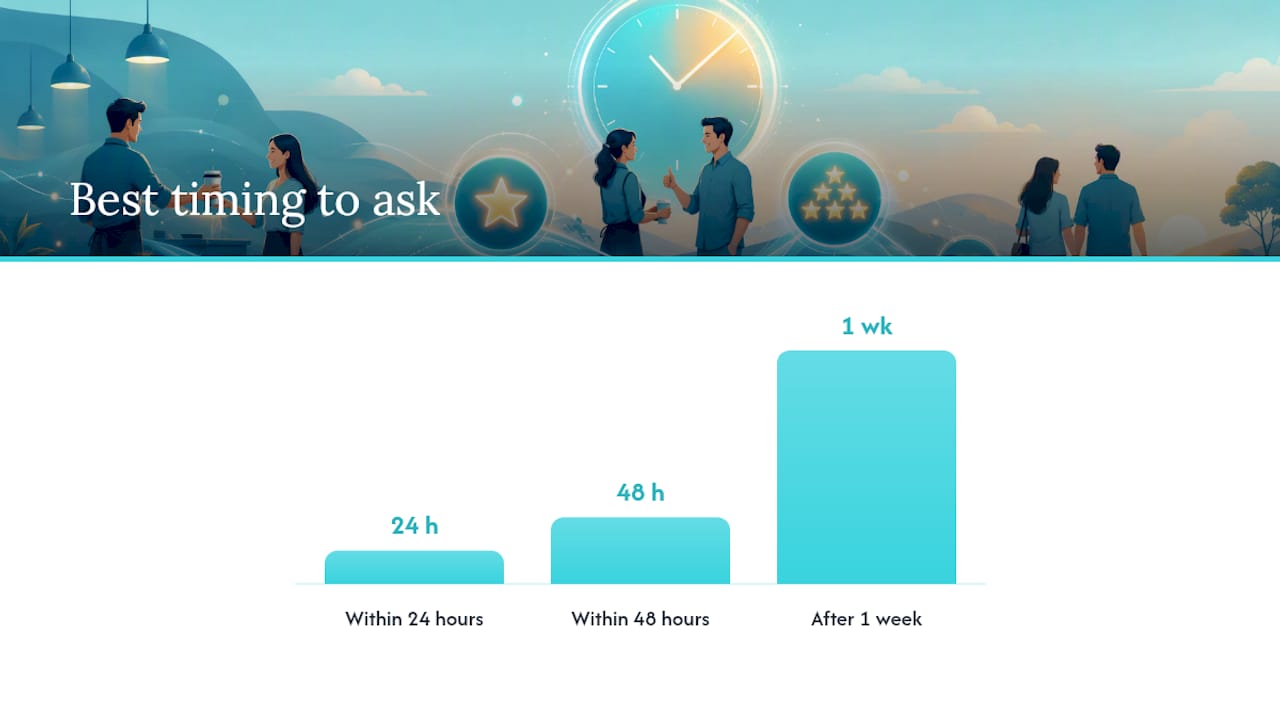
Timing beats wording almost every time. Ask within 24 to 48 hours of finishing the job, while the customer still remembers exactly how relieved they felt when the water heater stopped leaking. Wait a week and that feeling fades into "yeah, it's fine now."
Google's rules are strict, and breaking them can get your reviews wiped or your profile flagged. You cannot offer discounts, gift cards, or anything else in exchange for a review. You cannot ask only your happiest customers while skipping the ones who complained. You cannot preselect a star rating or tell someone what to write.
Google's own policy states that businesses must not offer incentives for reviews and must not selectively solicit reviews only from customers likely to leave positive feedback. Violating this can lead to review removal or profile restrictions.
Two safe templates that work:
- "Thanks for trusting us with your [job type]! If you have a minute, we'd appreciate a quick Google review: [link]"
- "Job's done. If everything's working the way it should, a short review helps other homeowners find us: [link]"
Thank positive reviewers briefly and publicly. If someone leaves a negative one, respond calmly and take the real conversation offline through a phone call.
Shortening Your Link and Fixing Common Problems
A long Google review URL looks clunky on a business card or a printed invoice. Google sometimes hands you a shortened g.page link when you generate it through your Business Profile. If not, run it through Bitly or set up a redirect like yourdomain.com/review, which also lets you track how many people actually click.
QR codes solve the same problem for print. Generate one straight from your direct review link and put it on invoices, yard signs, or a sticker on your work van.
If the link opens your business listing instead of the actual review box, something's off. Common fixes:
- Double check the Place ID format in your URL. It needs to read exactly
search.google.com/local/writereview?placeid=followed by your ID, with no extra characters. - Confirm your Business Profile is verified. An unverified or unclaimed listing can behave unpredictably with review links.
- Test the link on a different device, or while signed out of your own Google account. Google review pages require the reviewer to be signed in, so testing while logged into your own business account can hide problems a customer would actually hit.
Why Automating the Ask Beats Remembering to Do It
Here's the honest problem: you're not going to remember to send that link every single time. You're under a sink, behind a panel, or driving to the next call. The ask gets forgotten, and the review never happens.
Automating the request fixes that by matching the customer's peak satisfaction moment instead of relying on your memory. The strongest version of this ties the review request to invoice delivery, not a random timer, since the job is already paid and the relief is still fresh.
Automation handles the parts that trip people up:
- Sends the text at the right time, without you thinking about it
- Uses a consistent, compliant message every time
- Inserts the correct, working review link automatically
- Follows up once if the first text goes unanswered
(Author credentials, case studies, and customer testimonials placeholder.)
A Note on Making This a Habit, Not a One-Off
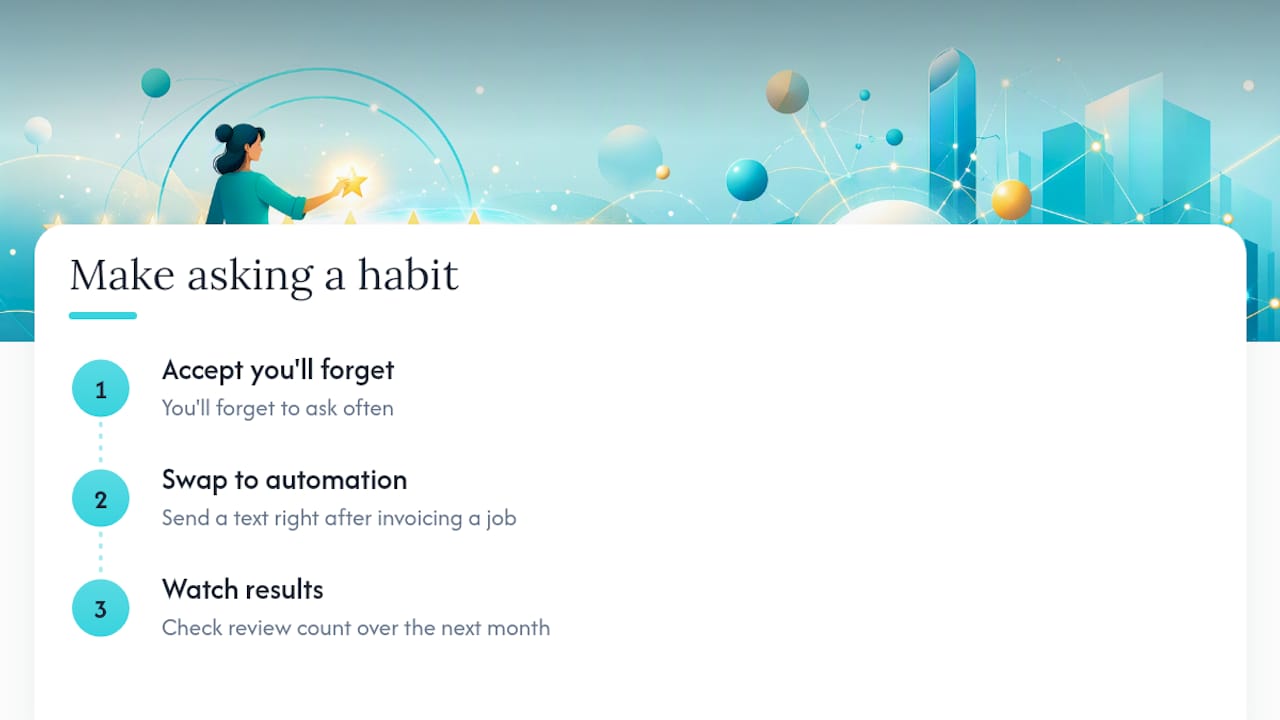
You'll forget to ask more often than you'd like to admit, and that's fine. Swap one manual ask for an automated text sent right after you invoice a job, then just watch what happens to your review count over the next month.
Turn Every Finished Job Into a New Review
Quotewren is built for solo tradespeople who don't have time to chase reviews between jobs. It turns a finished job into a quote, then an invoice, then an automatic review request sent by text the moment the work wraps up, so the ask happens while the customer's still glad you showed up.
No more sticky notes reminding you to text customers, no more forgetting until the next slow day. You set it up once, and Quotewren handles quoting, invoicing, and review requests from there. Start a free trial and send your next review request without lifting a finger.
Sources
- Create a Google link or QR code to request reviews - Google Business Profile Help
- Google reviews: How to ask, respond, and receive more of them - Salesforce
FAQ
How Do I Find My Google Review Link?
Search your business on Google, open your Business Profile, and click "Ask for reviews" to get a ready-made link. If that button isn't visible, build one manually with your Place ID using the format search.google.com/local/writereview?placeid=YOUR_PLACE_ID.
How Do I Create a Google Review Link if I Don't Manage My Profile?
Use the Place ID Finder to get your business's Place ID, then plug it into the review link format, or use a free generator that only needs your Maps URL or business name.
How Do I Ask a Customer to Leave a Google Review?
Text a short, neutral message right after the job, such as "Thanks for choosing us! If you have a minute, a Google review would mean a lot: [link]." Avoid offering anything in exchange, since that breaks Google's policy.
How Do I Check That My Google Review Link Actually Works?
Open it on a different device or while signed out of your own Google account, since reviewers need to be signed in to leave feedback. If it opens your business listing instead of a review box, recheck your Place ID formatting.
Can Automation Send the Review Request for Me?
Yes. Tools like Quotewren can trigger the text automatically the moment you send an invoice, so the request goes out while the customer's satisfaction is still fresh instead of relying on you to remember.