
Invoice reminders are scheduled or one-off messages that tell a customer a payment is coming due, due today, or already late. They work: a predictable reminder sequence with a clear pay link gets more invoices paid on time and cuts down the awkward "hey, did you forget about me?" calls.
The fastest thing you can do today: turn on automated reminders in whatever invoicing app you already use, and make sure every invoice has a one-click pay link attached.
Before you do anything else, run through this:
- Every invoice shows the invoice number, the amount owed, and a working pay link.
- You've got one reminder scheduled before the due date.
- You've got one firm follow-up scheduled for after the due date.
Key Takeaways
Consistent, well-timed reminders with a working pay link collect more late invoices than any amount of manual chasing ever will.
| Point | Details |
|---|---|
| Automate the routine stages | Set pre-due, due-day, and first overdue reminders once so you're not manually tracking every invoice. |
| Include the essentials every time | Every reminder needs the invoice number, amount, due date, and a working pay link. |
| Switch to manual after two silent reminders | Pick up the phone once a customer ignores two automated messages or disputes a charge. |
| Track your reminder-to-payment rate | Watch which reminder stage actually gets customers to pay, then double down on it. |
| Use a trades-built tool for the full loop | Quotewren links quotes, invoices, pay links, and review requests in one setup instead of several disconnected apps. |
Where to learn more
- QuickBooks reminder setup guide walks through exact settings and scheduling windows.
- Stripe's automatic reminder docs explain scheduling reminders before, on, or after the due date.
- 25 invoice reminder templates gives copy-paste wording for every stage of the schedule.
- Payment reminder email templates covers short, scannable wording for 5, 15, and 30 days overdue.
Table of Contents
- What Are Invoice Reminders and How Do They Work?
- How to Turn on Automatic Invoice Reminders (Step by Step)
- When to Send Reminders and What to Say
- When Automation Stops Working and You Need to Call
- Mistakes That Kill Your Collection Rate
- Choosing an Invoicing Tool That Handles Reminders Well
- Handling Customer Disputes or Questions Triggered by a Reminder
- Metrics to Track So You Know What's Actually Working
- Connecting Reminders to How You Actually Collect Money
- Get Paid Faster Without the Extra Admin Work
- Sources
- FAQ
What Are Invoice Reminders and How Do They Work?
There are two flavors: automated and manual. Automated reminders are set up once inside your invoicing software and go out on a schedule without you lifting a finger. Manual reminders are the emails, texts, or phone calls you send yourself when a job needs a personal touch, like a long-time client who's suddenly gone quiet.
Most tradespeople use a mix. You send email for the paper trail, text for a fast nudge on a smaller job, and phone calls when money's been sitting unpaid for weeks. A printed letter still has its place for big commercial accounts, but for day-to-day plumbing, HVAC, or landscaping invoices, email and SMS carry most of the weight.
- Email: Best for documentation and attaching the actual invoice.
- SMS/text: Fast, hard to miss, good for smaller residential jobs.
- Phone call: Reserve for overdue accounts that ignored two written reminders.
- Printed letter: Rare, but useful for commercial clients with slow accounting departments.
The payoff is straightforward. Reminders push on-time payment rates up, cut down on collection headaches, and save you the admin time you'd otherwise spend chasing people down one by one.
Pro Tip: If you do one thing, do this: attach a pay link to every reminder. A customer who has to log into a portal or write a check is a customer who puts it off another week.
How to Turn on Automatic Invoice Reminders (Step by Step)
You don't need to learn five different systems. Almost every invoicing app follows the same basic layout, and once you've set it up once, it runs itself.
- Check your invoice template first. Make sure it has a one-click pay link, your phone number, and your business name clearly on it.
- Find your reminder settings. Look under Billing, Invoices, or Notifications, usually with a submenu called "Reminders." In QuickBooks, for example, it's Settings → Account and settings → Reminders → Edit, where you flip on automatic invoice reminders and set your schedule.
- Pick your default schedule. Start with pre-due, due-day, first overdue, and second overdue. Only turn on steps you'll actually follow through on if a customer replies.
- Customize your message. Most apps let you insert the invoice number, amount, due date, and pay link automatically into the subject and body.
- Test it. Send a test invoice to a coworker's email or your own second address. Open it on your phone. If the pay link takes three taps to find, fix the template before it goes live.
Platforms like Stripe Invoicing let you schedule reminders before, on, or after the due date, and they'll automatically hold off sending one if a payment is already processing, so your customer doesn't get a nag email for something they already paid.
Pro Tip: If you invoice from a truck between jobs, set reminders up once during a slow afternoon, not while you're standing in someone's driveway. A five-minute setup session saves you weeks of manual chasing later.
When to Send Reminders and What to Say
Timing matters more than wording. A standard schedule that works well for small jobs runs like this: a friendly heads-up a few days before the due date, a neutral note on the due date itself, a firmer nudge after the due date, followed by additional reminders spaced by roughly one to two weeks, and a final notice after an extended overdue period. Each stage earns its place. The pre-due reminder catches people who just forgot. The due-day note catches the ones who meant to pay but got busy. The overdue stages are where tone starts to matter, and where most tradespeople either go too soft or too aggressive.
Keep it friendly before the due date, neutral on the day itself, and firmer (never hostile) as the invoice ages. Every reminder, at every stage, needs the invoice number, the amount, the due date or days overdue, a pay link, and your contact info.
Subject lines that get opened:
- "Invoice #1042 due Friday"
- "Quick reminder: Invoice #1042"
- "Invoice #1042 is now past due"
- "Following up on Invoice #1042"
- "Final notice: Invoice #1042"
- "Payment needed to close out your job"
Templates you can copy right now:
Pre-due: "Hi [Name], just a heads-up that Invoice #[number] for $[amount] is due on [date]. Here's the [pay link] if you'd like to take care of it now. Thanks again for the work!"
Due-day: "Hi [Name], Invoice #[number] for $[amount] is due today. You can pay here: [pay link]. Let me know if you have any questions."
First overdue: "Hi [Name], Invoice #[number] for $[amount] was due on [date] and hasn't come through yet. Pay link is here: [pay link]. Reach out if something's holding it up."
Final notice: "Hi [Name], Invoice #[number] for $[amount] is now over 30 days past due. Please pay using [pay link] by [date] to avoid further follow-up. Call me at [number] with any questions."
Pro Tip: Match the payment method to how you actually collect. If you take cards on-site, mention that in the reminder. If it's bank transfer only, say so up front so nobody wastes time hunting for a "pay online" button that doesn't exist.
When Automation Stops Working and You Need to Call
Automated reminders handle most invoices fine. But once a customer has ignored two reminders, disputes part of the charge, or owes you a large balance, it's time to pick up the phone or write a personal email.
- No response after two automated reminders: Call. A voicemail carries more weight than a third email.
- Contested charges: Stop the automated sequence immediately and handle it one-on-one so the customer doesn't feel like they're being nagged by a bot mid-dispute.
- Large balances: Anything over a few hundred dollars deserves a personal touch, not just a script.
Keep it simple on the phone: "Hey, I noticed Invoice #1042 for the water heater job is still open. Just wanted to check if everything's good on your end." Follow every call with a short email that recaps what was said, so you've got a written record if things drag on.
Mistakes That Kill Your Collection Rate
Small errors do a lot of damage here. Fix these and your reminders will do more of the work for you.
- Vague messages. Every reminder needs the invoice number, amount, and pay link. "Just checking in about payment" gets ignored.
- Reminder overload. Stick to a set schedule and stop automated messages the moment a dispute opens.
- Fees you never agreed to. Only charge a late fee if it was written into your original quote or contract. Unexpected fees can trigger disputes and delay payments.
- Clunky payment steps. If paying takes more than one or two clicks, customers stall. Cut the friction.
Choosing an Invoicing Tool That Handles Reminders Well
Not every invoicing app treats reminders the same way, and for a solo tradesperson, the difference between a clunky setup and a smooth one is the difference between getting paid on time or chasing checks all month.
Look for these before you commit to anything:
- One-click pay links baked into every invoice.
- Reminder scheduling you can set once and forget.
- Editable message templates, not a fixed script.
- SMS reminders, not just email.
- Mobile-friendly invoices that don't look broken on a phone screen.
- Pricing you can actually explain to another contractor in one sentence.
For a plumber, electrician, or landscaper working solo, the real test is speed on the jobsite: can you finish a job, turn it into an invoice, and send it before you've even left the driveway? That's the gap Quotewren is built for. It converts a finished job straight into a branded quote and then an invoice, with a pay link attached automatically, and it follows up without you having to remember to. It also handles review requests after the job closes, which most invoicing tools skip entirely.
Handling Customer Disputes or Questions Triggered by a Reminder
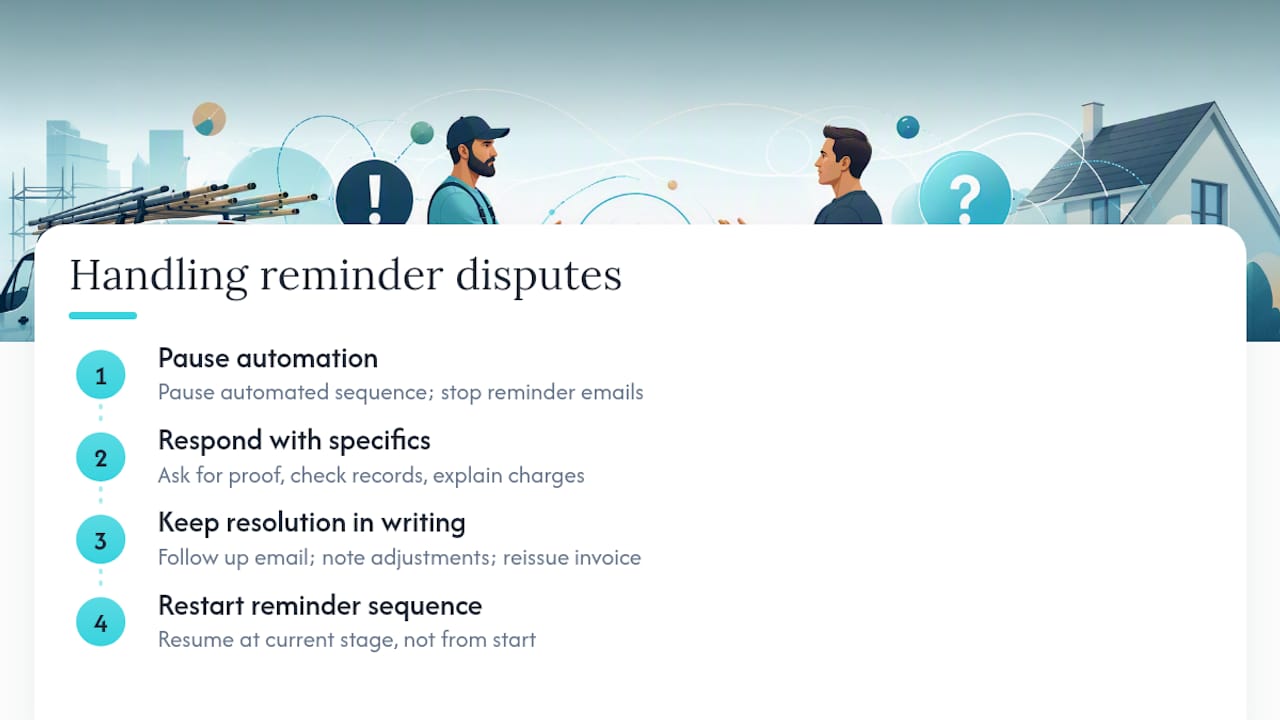
A reminder sometimes shakes loose a question you weren't expecting. Maybe the customer thinks they already paid, or they're questioning a line item on the invoice, or they simply forgot what the job included. Handle these fast, because an ignored question turns into a longer delay than the original invoice ever would have.
First, pause the automated sequence. Nothing damages a relationship faster than a customer trying to sort out a billing question while your software keeps firing off "past due" emails in the background.
Second, respond with specifics, not defensiveness. If a customer says they already paid, ask for a confirmation number or screenshot, and check your own records before pushing back. If they're disputing a charge, like an extra $80 for a part that wasn't on the original quote, walk through exactly what was done and why. This is where the difference between a quote (your original estimate) and the invoice (what you're actually charging) matters. If the final invoice doesn't match the quote, expect questions, and have your explanation ready before you send the reminder that triggers them.
Third, keep the resolution in writing. A quick call is fine for de-escalating, but always follow up with an email summarizing what was agreed. If you waived a fee or adjusted an amount, note it and reissue a corrected invoice rather than trying to explain a discrepancy after the fact.
Once the dispute is resolved, restart the reminder sequence from wherever makes sense, usually the current stage, not from the beginning.
Metrics to Track So You Know What's Actually Working
Reminders are only useful if you're watching whether they change behavior. You don't need a dashboard full of numbers, just a handful of things worth glancing at once a month.
Days sales outstanding (DSO) tells you, on average, how long it takes customers to pay after you invoice them. If that number is creeping up, your reminder timing or wording probably needs adjusting.
Reminder-to-payment rate is simpler: of the invoices that needed a reminder, how many got paid within a few days of that reminder going out? If a specific stage (say, the 14-day follow-up) consistently gets a response, that's your most effective touchpoint, and it's worth studying why.
Percentage of invoices paid on the first ask shows how healthy your client relationships and pricing conversations are upfront. A high number here usually means your quotes and deposits were clear from the start.
Overdue balance total, tracked weekly or monthly, is the plainest gut-check of all. If it's shrinking over time as you refine your reminders, you're doing something right. If it's growing, something in your setup, tone, or timing needs a second look.
Connecting Reminders to How You Actually Collect Money
A reminder without an easy way to pay is just a nag. The two need to work together, and the fewer steps between "reminder received" and "money in your account," the better your collection rate gets.
Make sure your pay link supports however you actually get paid, whether that's card, ACH bank transfer, or a payment app your customers already trust. If you're still asking people to mail a check after sending a digital reminder, you've created a mismatch that slows everything down.
If your invoicing tool integrates directly with a payment processor, confirm that a completed payment automatically stops the reminder sequence. Nothing frustrates a customer more than paying an invoice and getting a "past due" email an hour later because the systems don't talk to each other. Stripe's automatic collection tools, for example, suppress reminders once a payment is processing, which avoids exactly that kind of confusion.
Finally, keep your deposit and final invoice separate in your records, even if they're paid through the same link. A deposit collected upfront and a final invoice for the balance owed are different transactions, and mixing them up in your tracking makes your metrics (and your taxes) harder to sort out later.
A note for busy tradespeople
Site work, spotty Wi-Fi, and back-to-back jobs mean you don't have time to chase every invoice by hand. Automate the routine reminders and save your energy for the exceptions, the disputes, the no-shows, the big accounts. Consistency beats perfection here: a predictable sequence with a working pay link will collect most of your late invoices without you thinking about it twice.
Get Paid Faster Without the Extra Admin Work
Quotewren is built specifically for solo tradespeople who don't have time to babysit a billing system. Where general invoicing apps make you configure reminders, pay links, and follow-ups separately, Quotewren turns a finished job into a branded quote, then an invoice, with a pay link attached, in one flow.
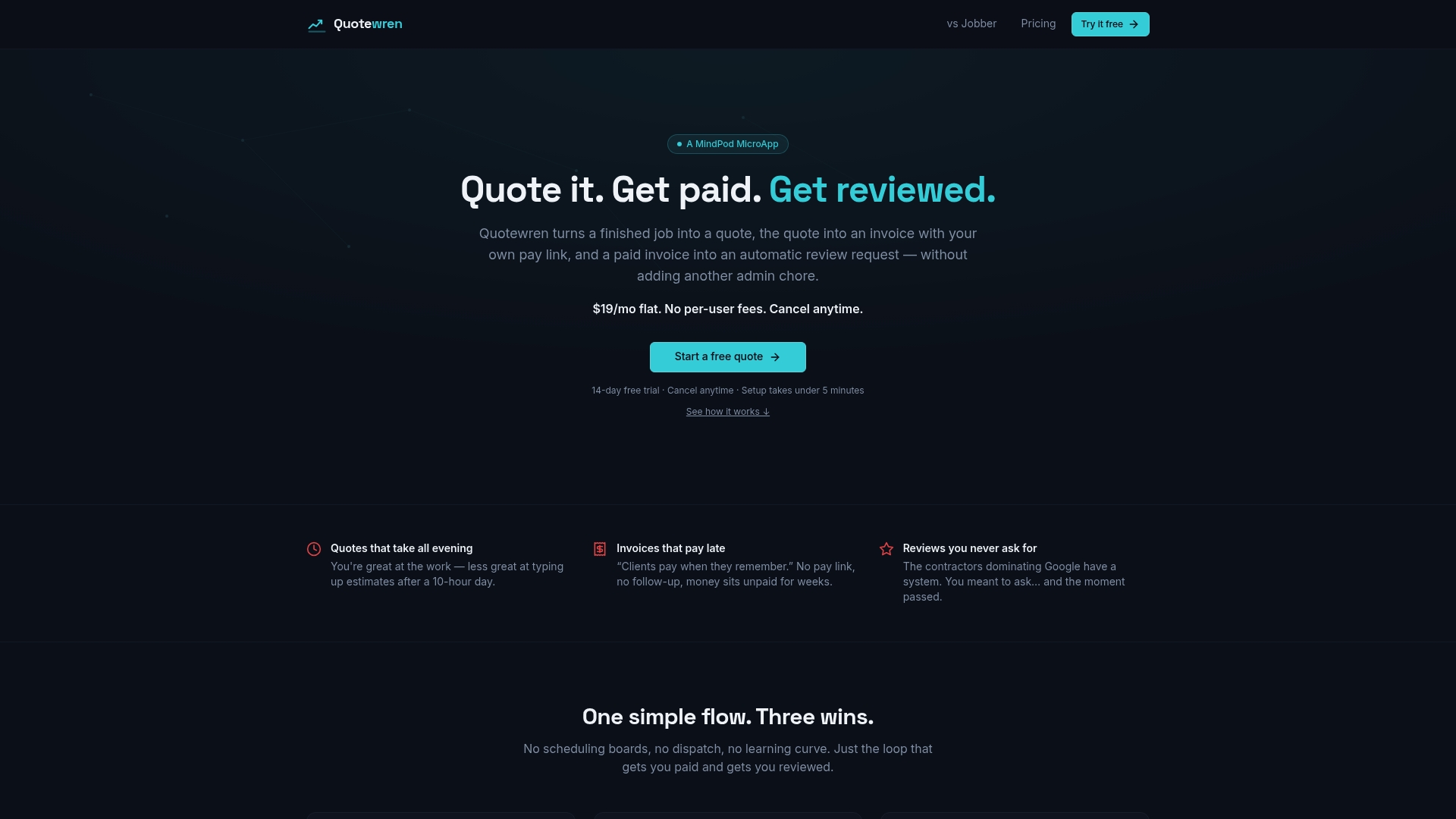
You get automated reminders on the schedule you set, so you're not the one remembering to nudge a customer three days after the due date. Once payment clears, Quotewren automatically sends a review request, which most invoicing tools leave out entirely, even though a steady stream of Google reviews is often what actually brings in the next job. Pricing stays simple and flat, without add-on fees for basic features you'd expect to have from day one.
If you're tired of chasing payments manually or cobbling together separate apps for quotes, invoices, and reviews, try Quotewren and set up your first automated reminder sequence in one sitting.
Sources
- What is a payment reminder? How to write and send one successfully
- Automatic reminders for one-off invoices (Stripe docs)
- Send invoice reminders automatically or manually in QuickBooks Online
- Invoice Reminder Templates: 25 Professional Emails That Get Invoices Paid
- How to write a Payment Reminder Email (with Templates)
FAQ
What is an invoice reminder?
An invoice reminder is a message, usually email or text, that tells a customer a payment is coming due, due today, or overdue, and gives them a way to pay right away.
What's a good example of a billing reminder email?
A strong example includes the invoice number, the amount owed, the due date, and a one-click pay link, written in a friendly tone before the due date and firmer as it ages. See the templates above for wording you can copy directly.
How do I turn on invoice reminders in QuickBooks?
Go to Settings, then Account and settings, then Reminders, and click Edit to turn on automatic invoice reminders, where you can also customize the schedule and message.
What's a good payment reminder message?
The best messages are short, name the exact amount and invoice number, and include a direct pay link, tools like Quotewren build that pay link into every invoice automatically so customers never have to hunt for it.
When should I stop automated reminders and call instead?
Switch to a phone call or personal email once a customer has ignored two automated reminders, disputes part of the invoice, or owes a large balance that deserves a direct conversation.